
Driving Log
An easy way to log hours for student drivers
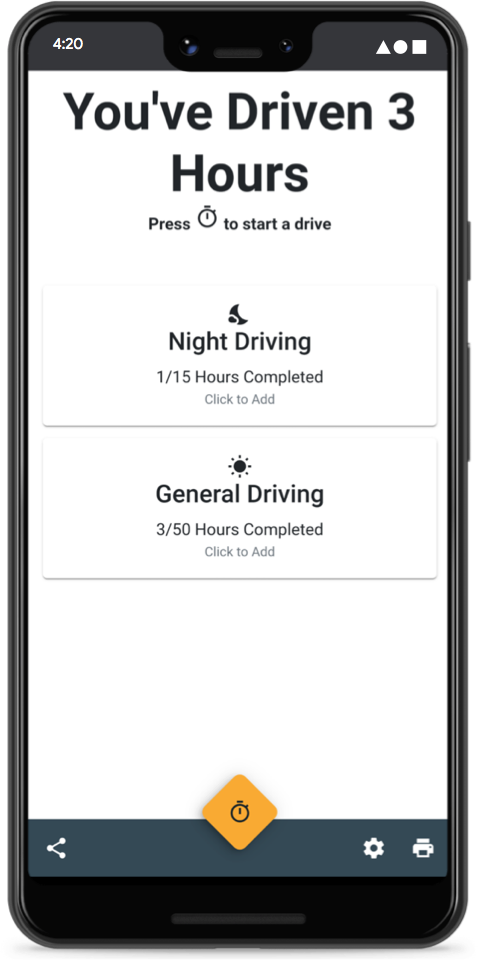
An easy way to log hours for student drivers
Focus on driving with an easy to use interface and no accounts or passwords.
Add the app to your devices home screen to use it as an app. And it works offline!
No ads, no tracking. The code is open source, so feel free to check it out.
Print your log to submit it to the DMV.
To install this app, follow the directions for your browser.
For Safari on iOS, press the "share" icon
on the toolbar at the top. Scroll through the bottom row of the popup until you find "Add to Home
Screen".
For Chrome, Chromium Browsers, or Firefox, press the settings icon on the bottom right of the
drive tracker app. If you see "Install App" drive tracker can be installed click "Install App" and you will be
prompted to add the app to your home screen.
The app is now available offline
This app is designed for student drivers. It can be used by either the student or parent/guardian.
It
could also be used by professional driving instructors to track session time and speed.
Press the print button at the bottom of the screen. A print dialog will appear. On iOS, only AirPrint printers
are supported.
Please note that some places require that their official driving log is filled in. In this
case, you will need to transfer your driving hours to their log by hand.
If you get a new phone, your data might not be transferred to the new device. Be sure to export your data in settings and send the file you downloaded to your new phone. On the new device, open the setup screen for driving log, press the import data option at the bottom of the screen. A popup will show. Upload the JSON file and press Import. Finish setting up driving log and see your data on the home screen.
Not right now, but maybe some day on Android. There is an option to compile it for Android, but it unfortunately requires a Google Play Development Registration, which I don't have the resources to get.
On Android or your Computer, press the share button, then export your data. A JSON file will be
downloaded
iOS is a little more complicated due to differences in Safari. On iOS 13.4 or later, press
share at the bottom of your screen and press Export Data. Some text will be copied to your clipboard. In order
to save it, paste it into a new note.
On older versions of iOS, when you export your data you'll be shown
some text. Press and hold on the screen and press "Select All", now save it in a new note.